Blog
Turn Your ChatGPT Designs into Real Trading Cards
Made a custom card with ChatGPT? Upload your design to TCGPrintery, choose your card back and finish, then review your artwork before ordering.
TCGPrintery4 min read
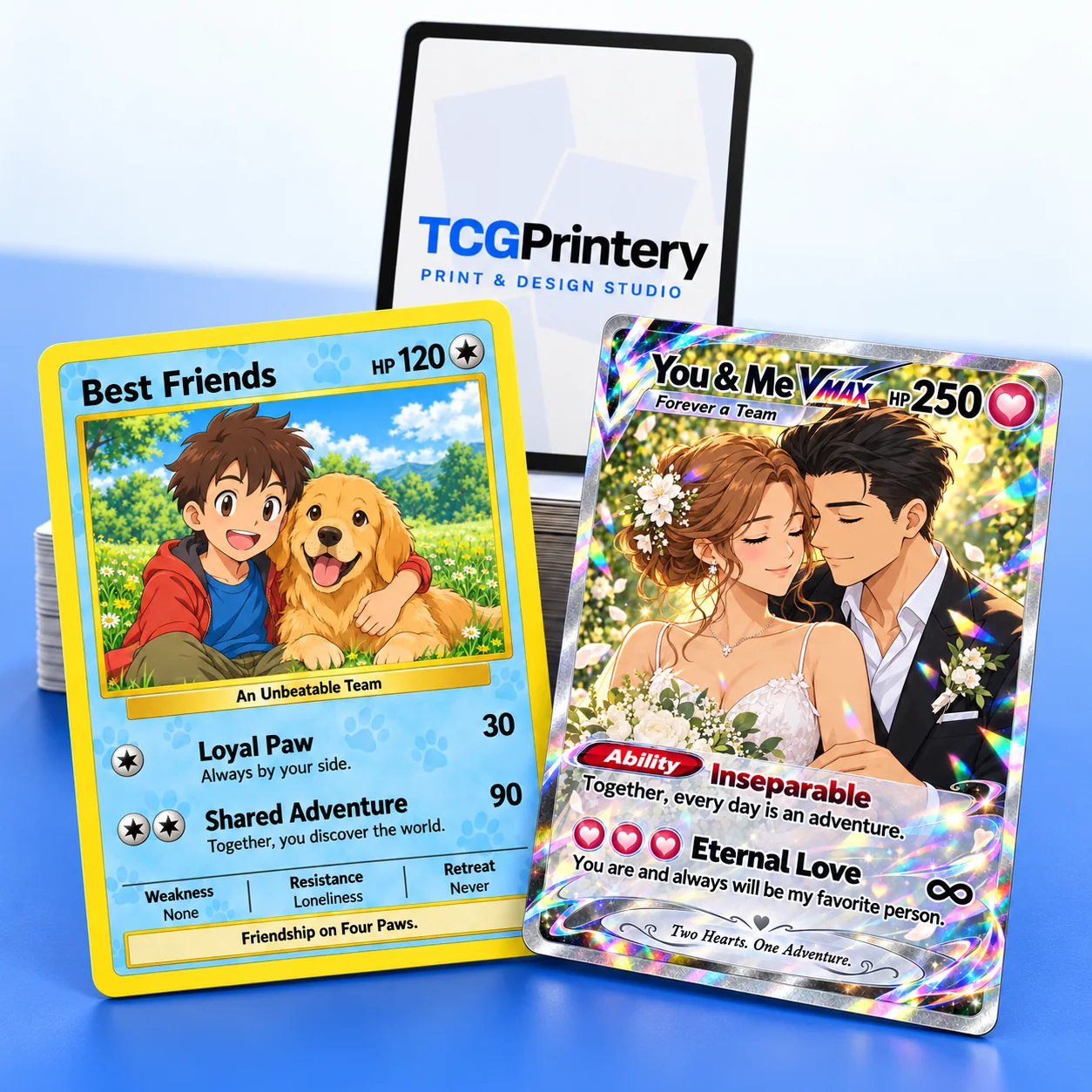
Created a custom trading card with ChatGPT? Turn your design into a card you can hold, collect or give as a gift. Upload your artwork to TCGPrintery, choose your print options and review your cards before ordering.
You do not need to recreate the design in another editor just to start. If you already have the finished image, the next step is to prepare that file for printing. This guide takes you from the downloaded artwork to the final card preview.
From a personal idea to a printed trading card
A custom card can celebrate a person, a pet or a shared memory. Perhaps you have designed a character card for a friend, a couple's card for a wedding, or a small deck for your own story. Printing turns the image on your screen into something you can keep in a sleeve, add to a collection or include with a present.
Two examples created with ChatGPT
These two designs created with ChatGPT show how personal a card can be.
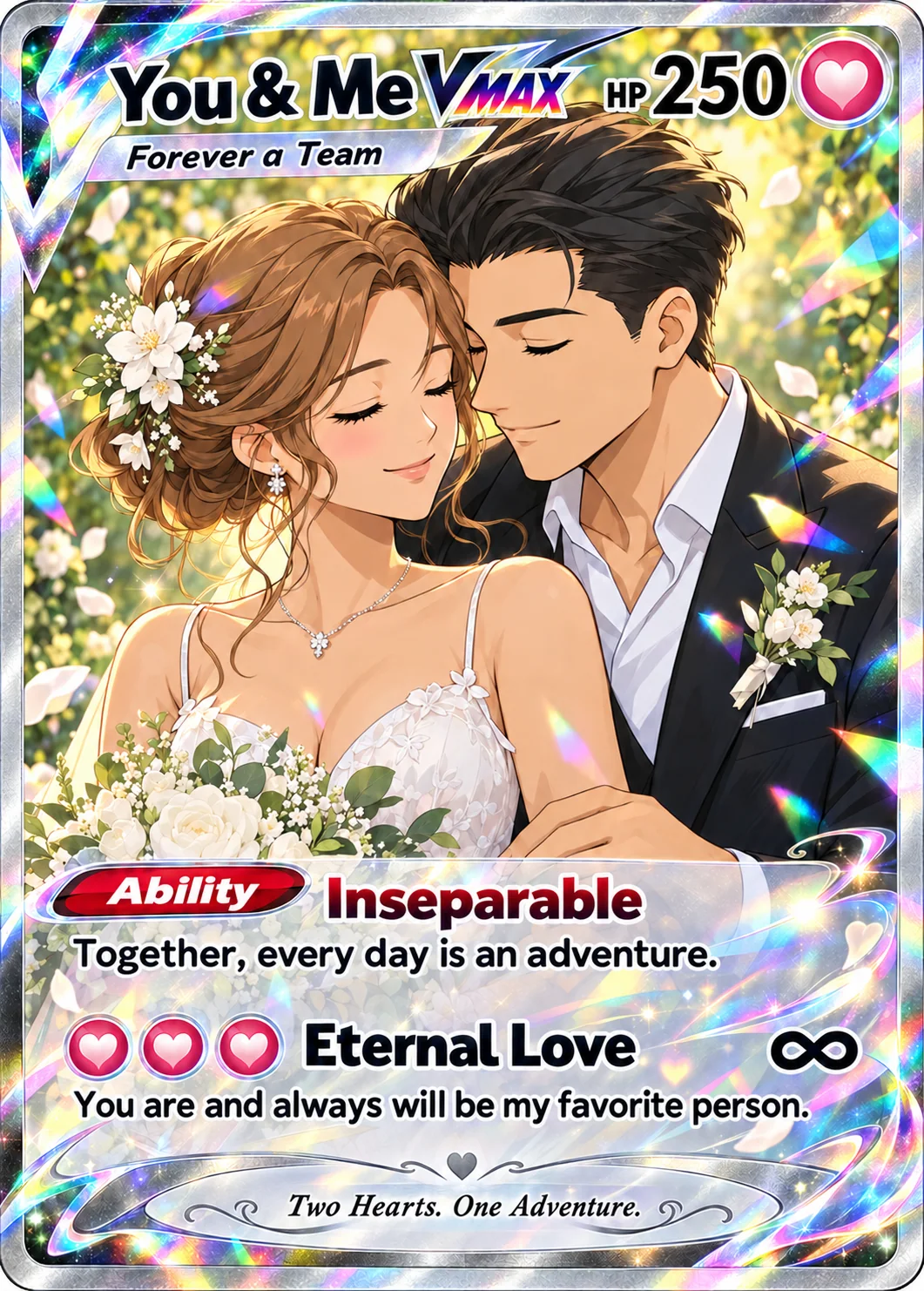
You & Me
A couple's card with a wedding theme. A name, a date and a few personal details can make the design feel connected to the people receiving it.
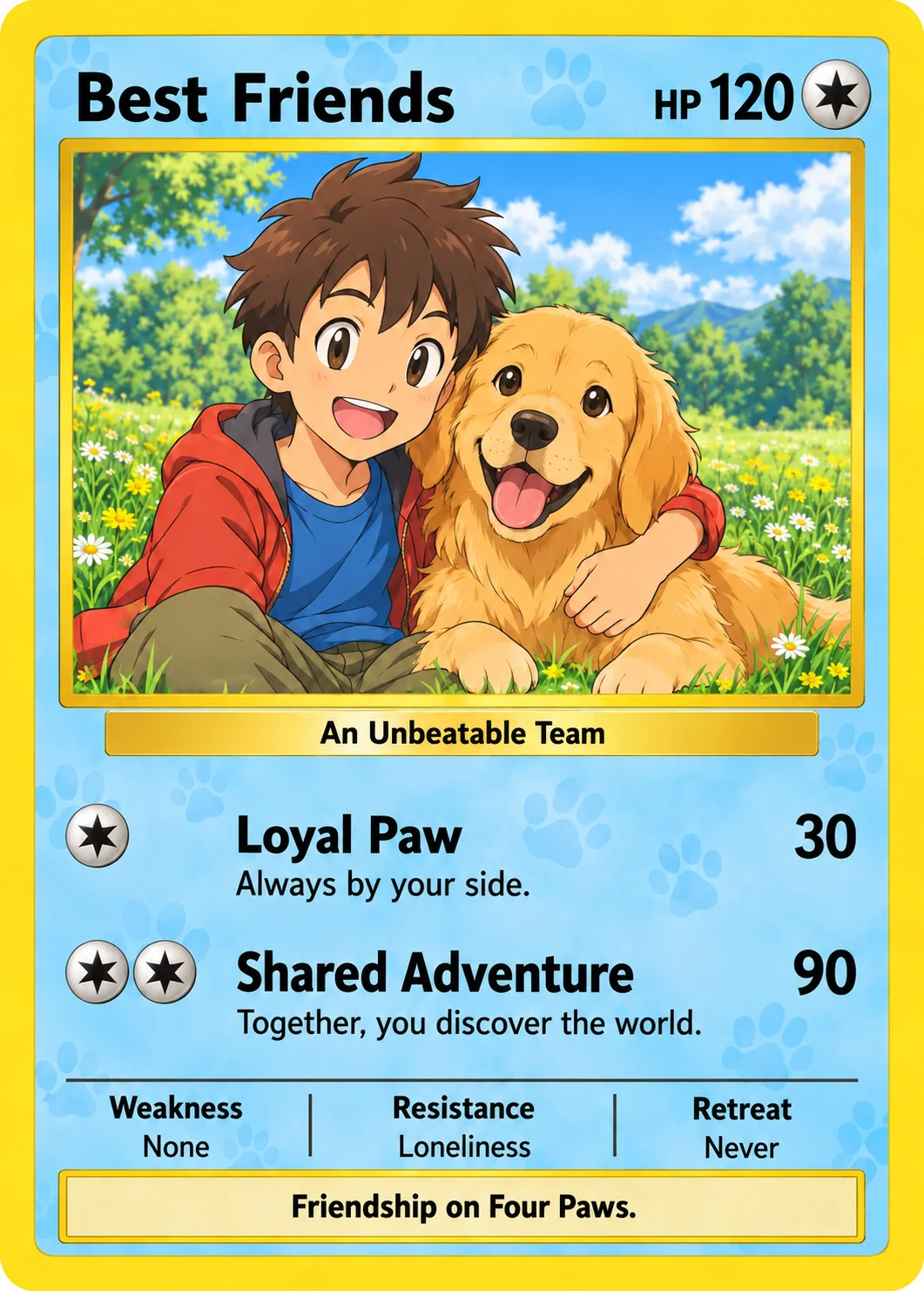
Best Friends
A boy and his Golden Retriever become the subjects of a friendship card. The same approach can work for a pet portrait, a birthday or a favourite family moment.
Download the original image
Save the finished image directly from ChatGPT. Use the original download instead of a screenshot of the conversation. Screenshots can include interface elements, crop the artwork or reduce the available detail. Keep an untouched copy so you can return to it if you need to make changes.
Open the downloaded file at full size before uploading it. Check the spelling of names, the card text and any small numbers or symbols. Look closely at faces, hands and other details that matter to the design. A mistake that is easy to miss on a phone may be noticeable on the printed card.
Prepare the file for the card size
The Standard format is 63 × 88 mm. Artwork made in a different shape may need cropping to fit. Keep important text, faces and symbols comfortably inside the edges, rather than relying on a very narrow border.
Aim for at least 300 dpi at the intended print size. Asking for “high resolution” in a prompt does not guarantee the file has enough pixels for printing. Check the actual image dimensions and review the designer's resolution warnings. Enlarging a small image does not recover missing detail.
See our print-ready files guide for dimensions, resolution and bleed. Bleed extends the artwork beyond the final cut line; it is not extra room for important text.
Upload your ChatGPT card to TCGPrintery
1. Add your front artwork
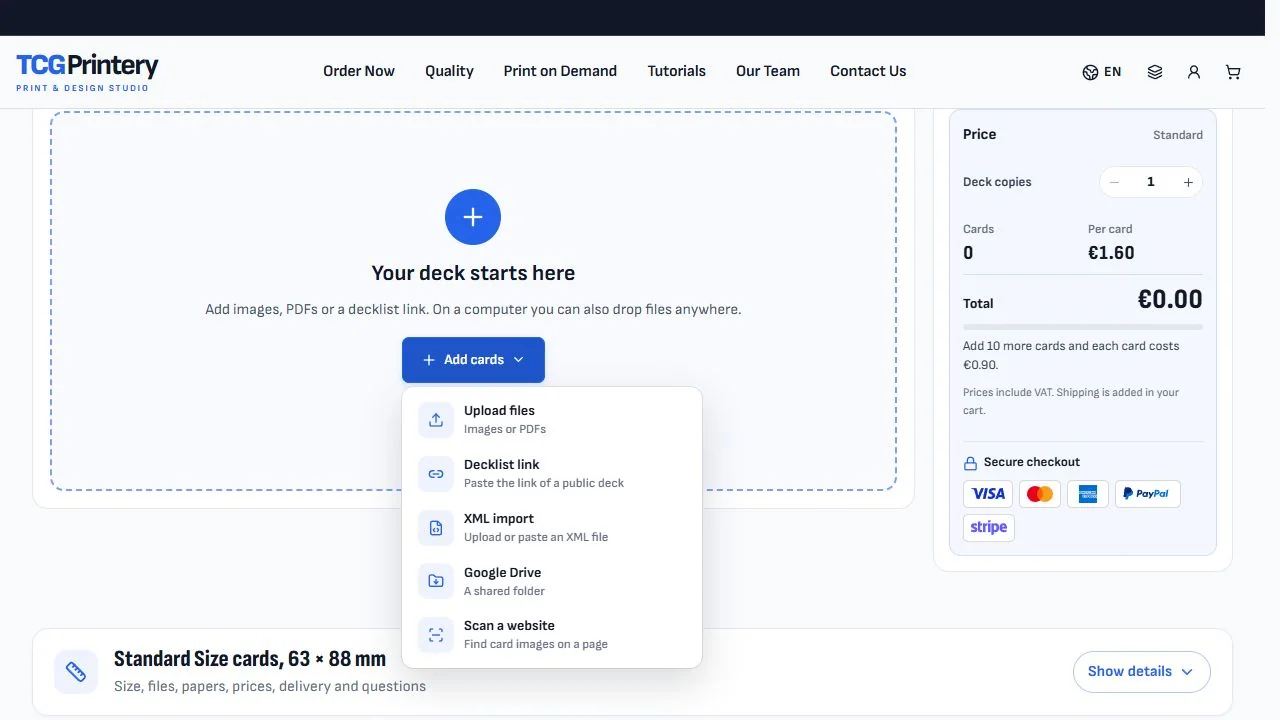
Open the Standard card designer, choose Add cards and select Upload files. You can upload JPG, PNG, WebP and PDF files. Add your finished designs, then check that every card you want to print appears in the project.
2. Choose a back and review the layout
Use the white TCGPrintery card back or upload your own. If your cards have different backs, check that each front is paired with the correct reverse. Review the crop and bleed on both sides, especially around names, borders and faces.
3. Select your finish and quantity
Explore the options on our quality and materials page, then choose your configuration in the designer. Check the copies of each design and the total card quantity before adding the project to your cart.
A rainbow or sparkle effect drawn into the image is printed artwork. It does not create a physically reflective surface by itself. If you want the card to shine as you tilt it, choose an appropriate foil option and review how that finish works.
A quick check before ordering
- Use the original downloaded artwork.
- Read every name, number and line of card text.
- Review faces, crop, borders and bleed.
- Confirm each front has the right back.
- Check your finish, quantities and order total.
Frequently asked questions
Can I print a card I already made with ChatGPT?
Yes. Download the finished image, upload it to the designer and review the print layout before ordering.
Can I order just one custom card?
Yes. You can start with one card, whether it is a personal gift or a first test of your design.
Do I need to upload the ChatGPT conversation?
No. Upload the finished artwork file. The conversation and prompt are not needed to print your card.
Can I use my own card back?
Yes. Upload your back artwork and check the front-to-back pairing in the designer.
Where can I find more help with the designer?
Visit our how-to guides for a closer look at the controls and review steps.
Your design is ready for the next step
Take the card you created on screen and prepare a physical version. Upload your artwork, review the details and choose how you want it printed.