Blog
How to Print MPCFill Cards from an XML File at TCGPrintery
Already have an MPCFill XML file? Import your card selection, check fronts, backs and quantities, and choose your print options at TCGPrintery.
TCGPrintery5 min read
Already have a card selection saved as an MPCFill XML file? Upload it to TCGPrintery, review your cards in the designer, and choose your paper and finish before ordering. This guide takes you from your exported file to a deck ready to add to your cart.
Your XML contains the card selection and references to its artwork. TCGPrintery uses those references to import supported images, including the fronts and backs assigned in the file. Keep your original XML handy while you check the result.
Upload your MPCFill XML file
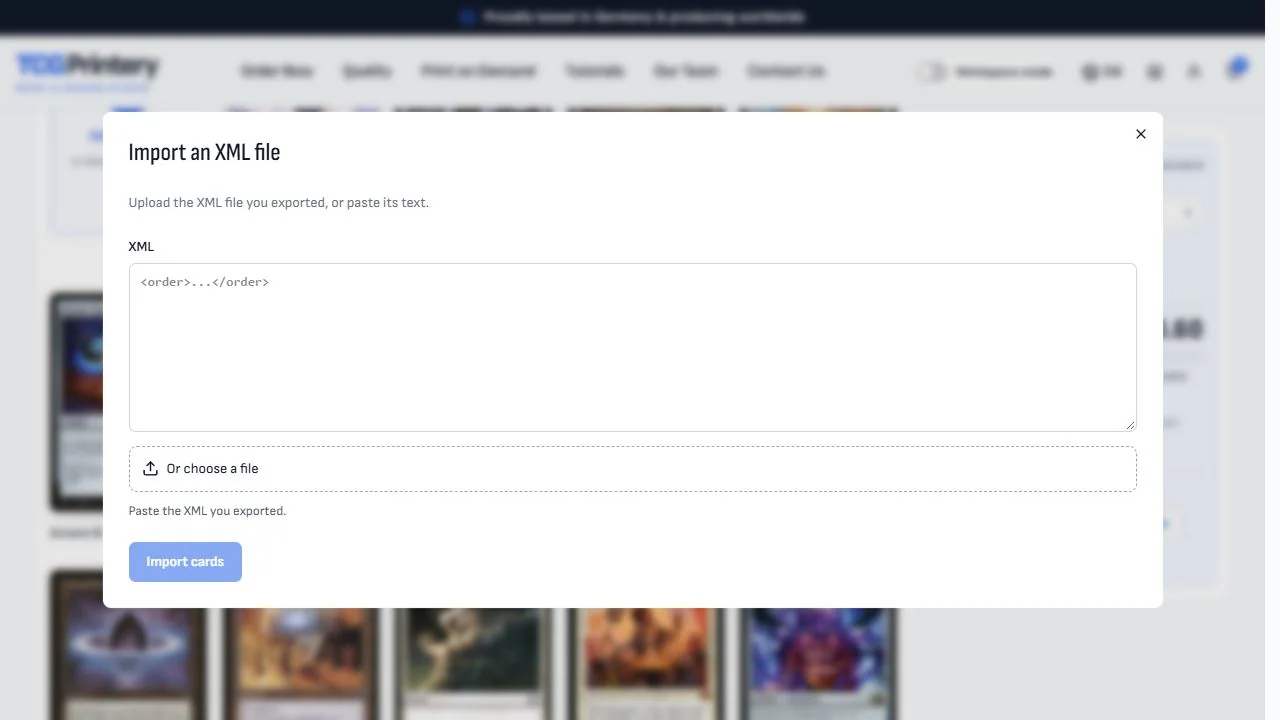
For a standard trading card deck, open the Standard Size designer. The finished card size is 63 × 88 mm. Start with an empty deck if you want the imported selection to stay in a separate deck: importing into an existing deck adds cards to it.
- Click Add cards in your deck.
- Choose XML import to open the import window.
- Select the .xml file exported from MPCFill. You can also paste its XML text.
- Click Import cards and wait for the import to finish.
The cards are added to the designer, where you can review them. If any items could not be imported, read the displayed details before continuing. A partially imported deck may contain fewer cards than you intended to order.
Review the imported cards and backs
Take a moment to compare the imported deck with your selection in MPCFill. This is the useful final check between choosing your artwork and ordering printed cards.
- Card count: check the total number of cards. Identical copies may appear together in one tile with a copies control, so the number of tiles can be smaller than the number of physical cards.
- Front artwork: open the preview and check that the intended image is present, text is readable, and the crop looks right.
- Card backs: check both shared backs and any cards with their own reverse, especially double-faced cards.
- Missing items: resolve any import warnings and compare the resulting deck with your original selection.
The import follows the XML's card order and back assignments. A back specified for an individual card is used for that card; otherwise, the shared back in the XML applies. If a back is missing or you want a different design, review and set it in the designer.
Choose your paper and finish
Choose paper and foil settings separately in TCGPrintery; these settings are not transferred from the XML.
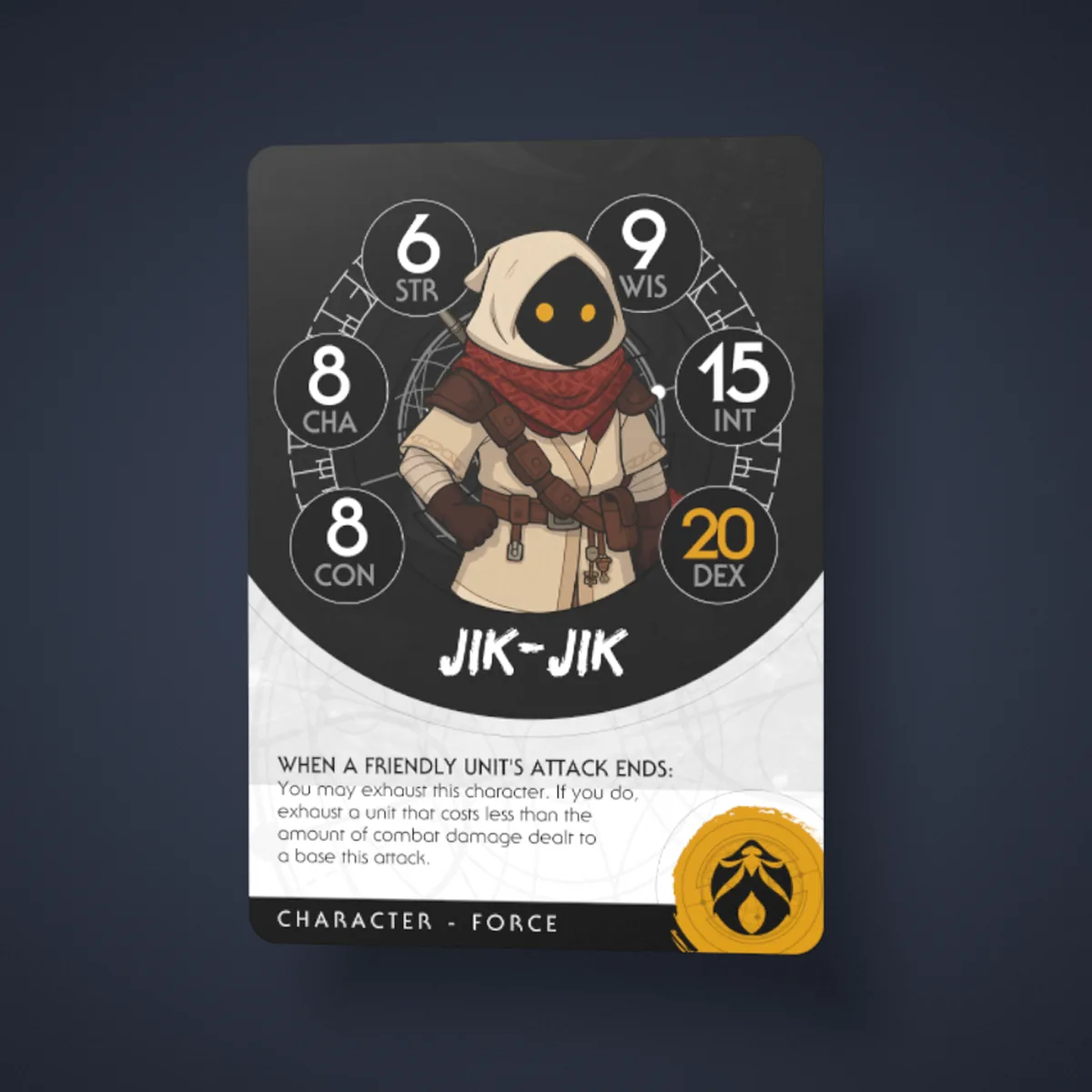
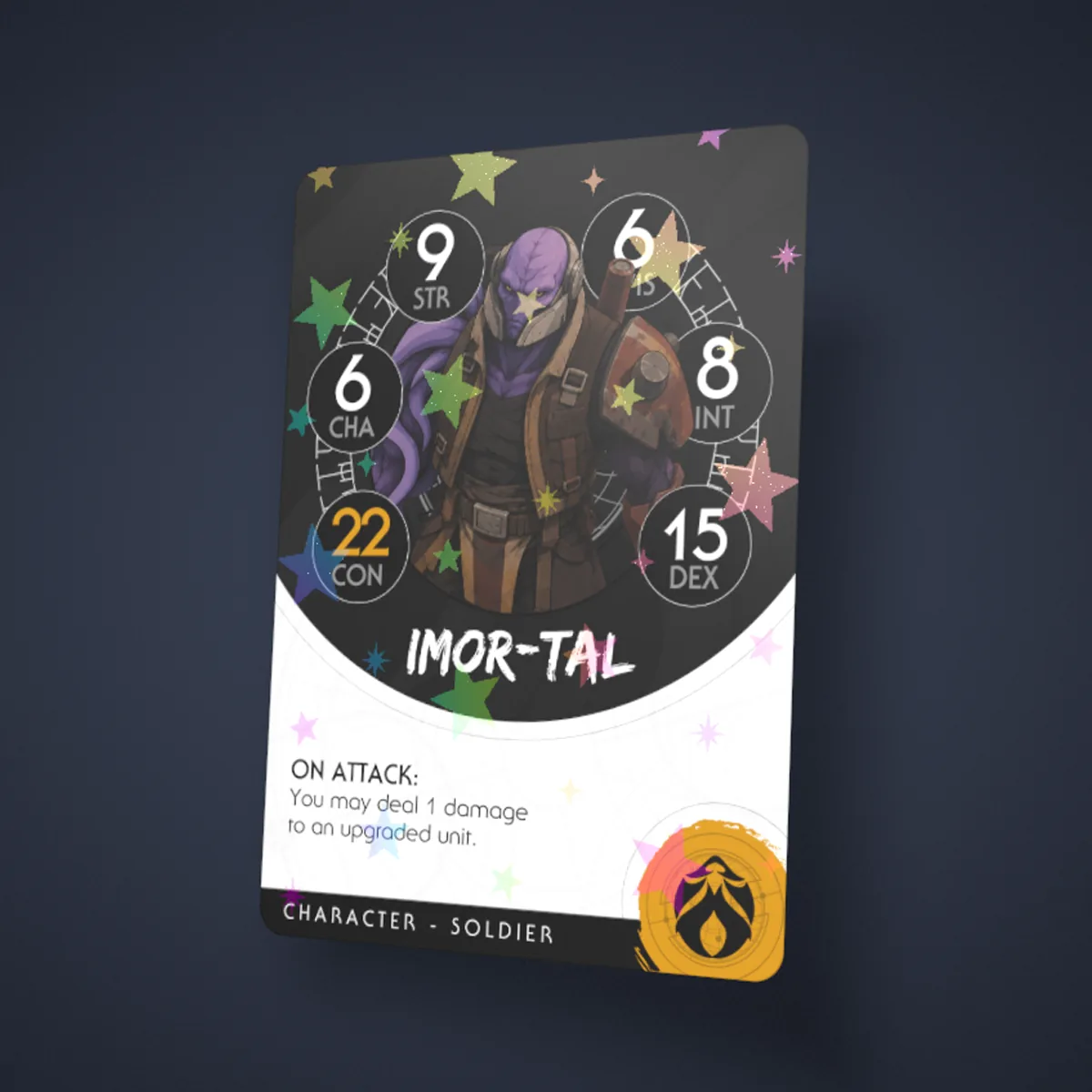
Open the Paper menu to choose the material for your cards. Standard and Black Core are available, alongside foil options. If you are considering Holo Foil or Partial Foil, visit our quality and materials page to compare the finishes before deciding.
Also check the difference between card quantities and deck copies. The quantities imported from XML describe the cards within your deck. Whole-deck copies are a separate setting: a 100-card deck ordered twice produces 200 cards. Set the number of complete copies in the price tab.
Check the crop and bleed
MPCFill artwork commonly includes bleed, the area around the finished card that allows for trimming. Leave that existing border in place when using the XML import. There is no need to crop it off before importing.
Use the designer's preview to inspect the finished crop and bleed. Look at the edges of frames, small text and any details close to the trim. Check both sides of cards with individual backs, and correct anything that looks misplaced before adding the deck to your cart.
Add your deck to the cart
Once your cards, backs and print options are set, review the current price and the number of deck copies. Confirm that the total card count matches what you want to receive, then click Add to cart.
You can work through these checks on the same designer page. For help with individual controls, our how-to guides cover card backs, paper choices, bleed and checkout.
If an image or card is missing
An XML file references artwork stored elsewhere; it does not bundle every image inside the file. If an image is unavailable, its sharing permissions have changed, or its source is unsupported, an item may be left out. A required missing reverse can also prevent a card from being imported.
Open the import details to see the reason. Update the affected selection and export the XML again, or use Upload files to add replacement artwork from your computer. XML references to files on your own device cannot be fetched through the import.
If the XML itself is rejected, try a fresh export from MPCFill. Review the deck after correcting the problem, since a previous partial import may already have added some cards. This helps you avoid leaving anything out or adding unintended duplicates.
Frequently asked questions
Do I need to upload every card image separately?
For supported, accessible artwork, the XML import brings the selection into your deck using its image references. Upload individual files when you need to replace an unavailable image or add artwork from your computer.
Can I change a card back after importing?
Yes. You can choose a shared back for the deck or give an individual card its own back. Review those assignments before ordering, particularly when your selection includes double-faced cards.
Can I import into a deck I have already started?
Yes. Imported cards are added to the current deck. Use an empty deck for a separate selection, and check quantities carefully if you import the same XML more than once.
Print your MPCFill card selection
Have your XML ready? Bring it into TCGPrintery, check the imported artwork and backs, choose your material, and review your quantities before ordering.